A native screenshot tool for Windows and macOS that combines precise capture, scrolling long images, short GIFs, full annotation, and desktop pins for images, text, colors, files, and Markdown. Core features are currently free for individuals and businesses, with no in-app ads.
Snipkap recognizes windows and UI controls, and still lets you drag a free selection or nudge it by the pixel. The color HUD shows HEX and RGB together for design checks, engineering handoff, and UI review.
Smart window and control recognition
15 × 15 physical-pixel zoom with a crosshair
Press C / CC to copy HEX or RGB
Alt + L纵向滚动截图实机界面Chrome 页面 · 1290 px 宽选区
Alt + LVertical scrolling captureChrome page · 1290 px selection
ANNOTATE IN PLACE
清晰标注, 让沟通更加准确。
箭头、文字、形状、马赛克与翻译等工具可在截图界面直接使用,适合界面反馈、操作说明和敏感信息处理。
18 项标注与输出工具,文字支持再次编辑
真实块均值马赛克,用于处理敏感信息
支持撤销、重做、复制、保存、翻译与桌面贴图
Clear marks, clearer communication.
Arrows, text, shapes, mosaic, and translation stay in the capture view, which fits UI feedback, how-to notes, and hiding sensitive details.
18 annotation and output tools, with editable text
True block-average mosaic for sensitive information
Undo, redo, copy, save, translate, and pin
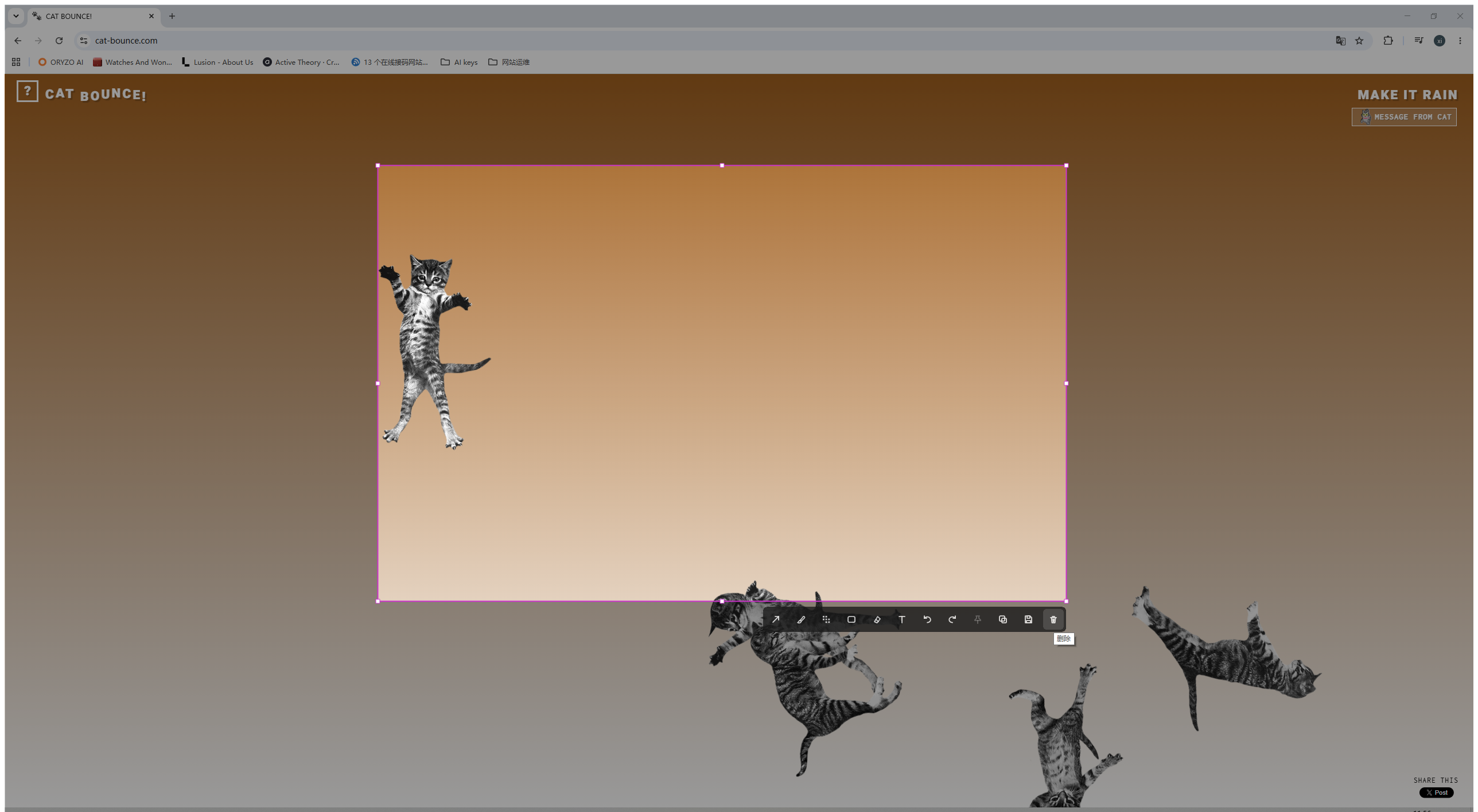
18 项工具GIF 完成后的真实编辑界面复制、保存与销毁原始动图
18 toolsReal editor after a GIFCopy, save, or discard the original GIF
MORE THAN A SCREENSHOT
长内容与操作过程, 都能完整记录。
从滚动页面到短操作演示,再到桌面参考图,常用场景由同一套工具覆盖。
Long pages and short actions, kept in one tool.
Scrolling pages, short demos, and desktop reference images are covered by the same capture workflow.
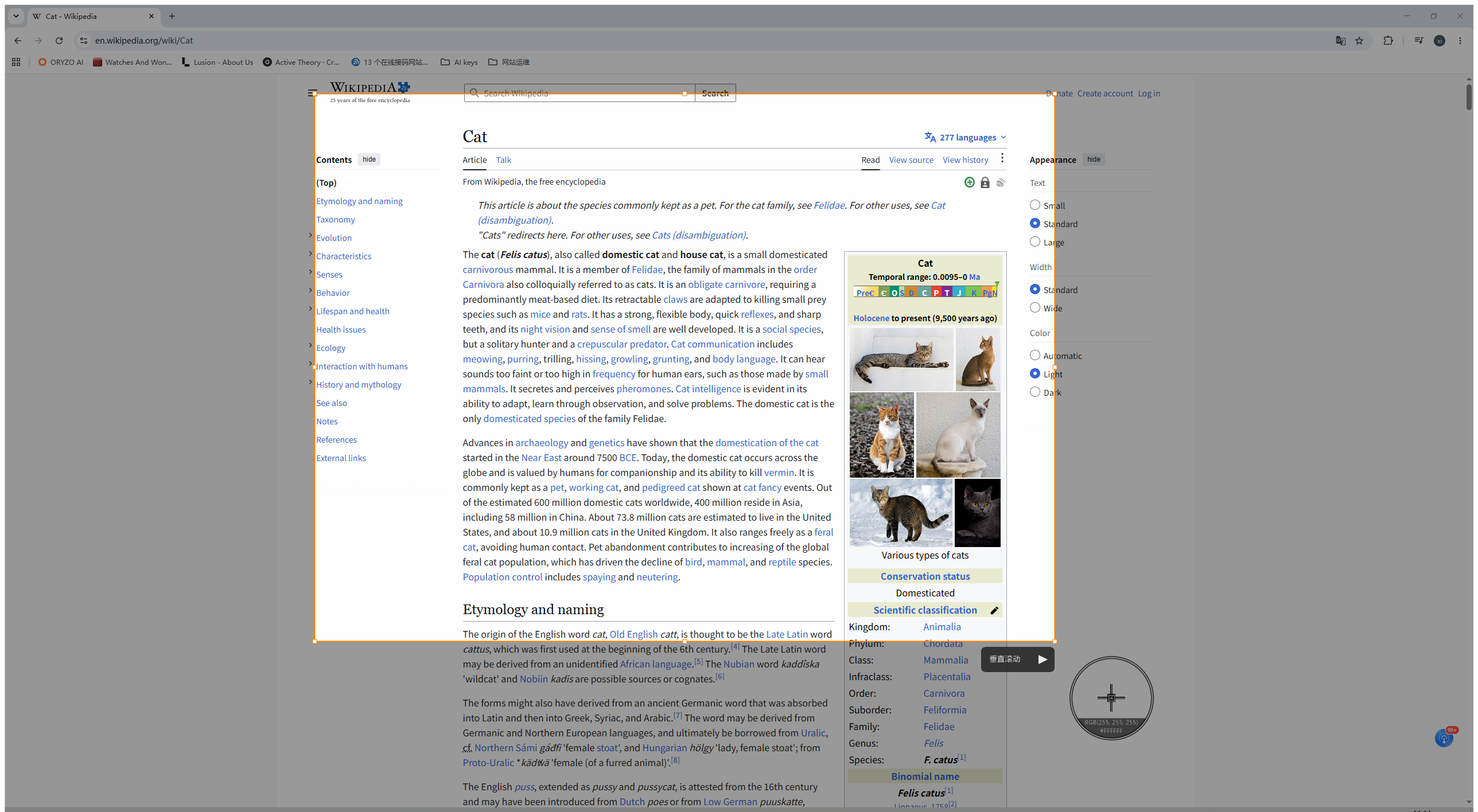
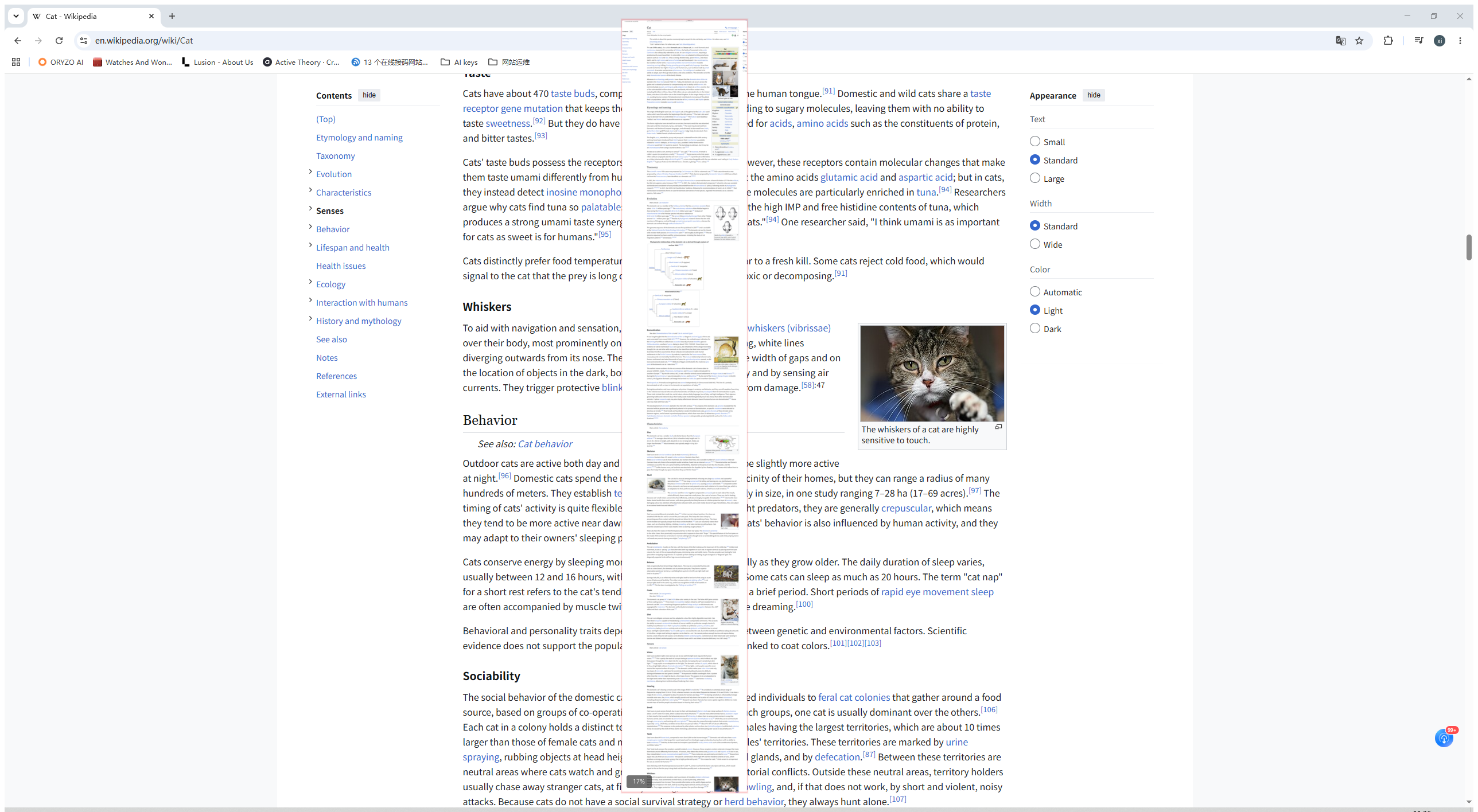
纵向长截图 · 实机结果
7959 像素长页面,一次完整拼接。
使用 Chrome 猫主题百科页面实际测试,Snipkap 自动滚动、识别重叠区域并生成连续长图。
Vertical scrolling capture
A 7959-pixel page, stitched in one pass.
On a Chrome cat encyclopedia page, Snipkap scrolls, matches overlaps, and builds one continuous image.
1290 × 7959 PNG
横向长截图 · 实机结果
横向网页,也能自动连续捕获。
在 The Horizontal Way 页面选择“横向滚动”,实际生成 4937 × 455 的横向长图。
Horizontal scrolling capture
Wide pages can be captured continuously too.
On The Horizontal Way, choosing horizontal scroll produced a 4937 × 455 image.
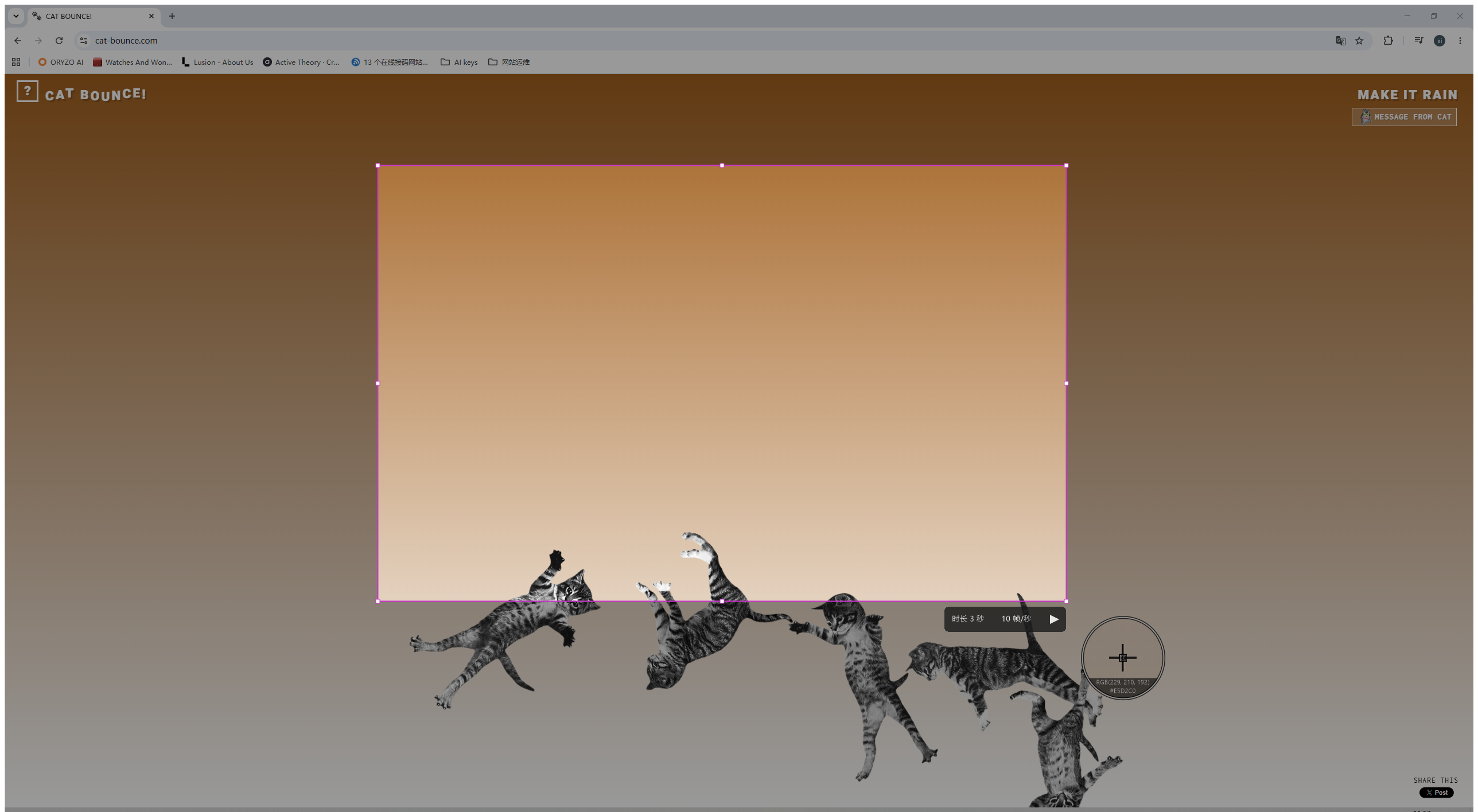
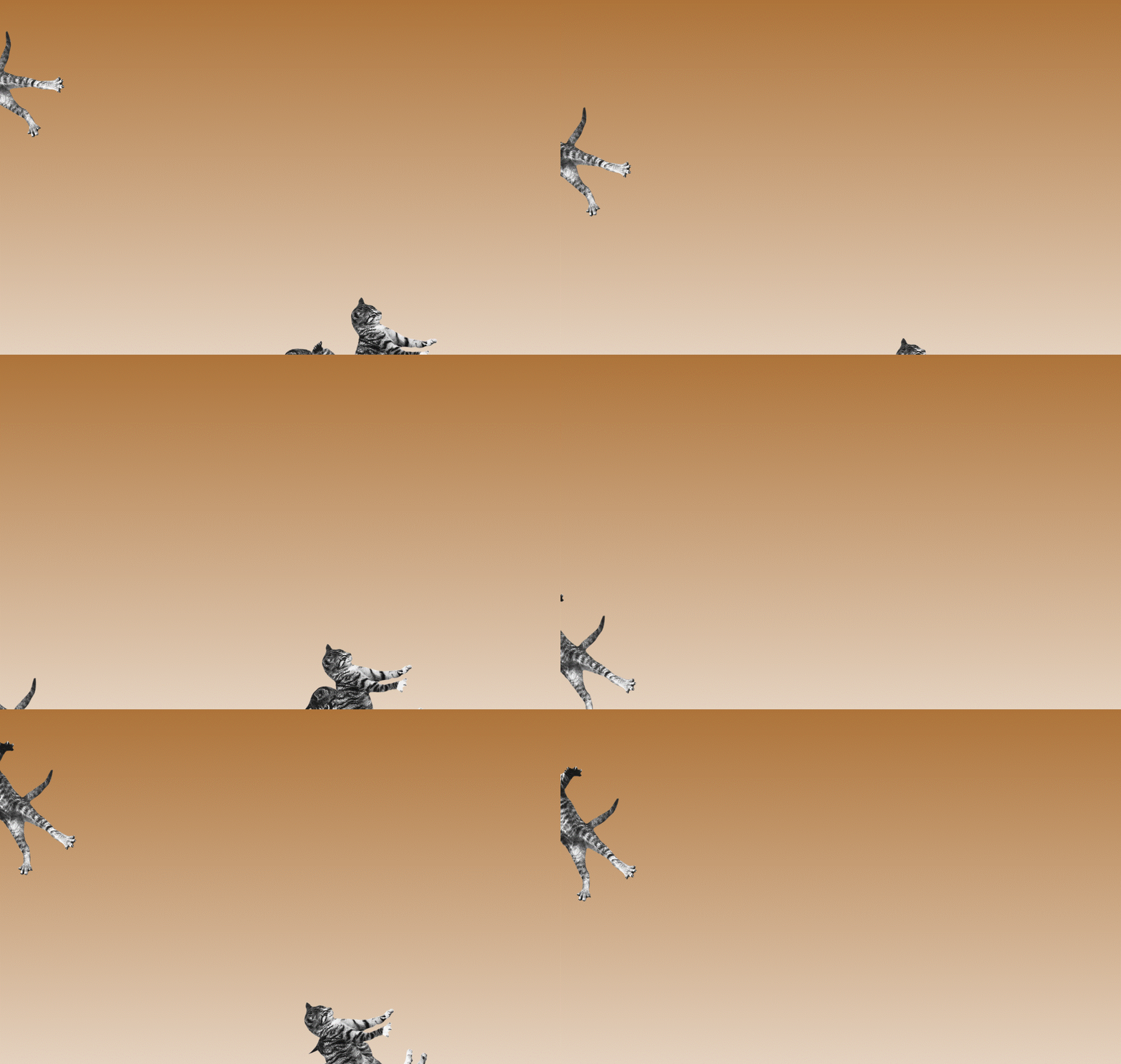
Recorded on Cat Bounce. The original GIF was created on-device and is shown here as-is.
Snipkap 原始 GIF 输出
Original Snipkap GIF
桌面贴图 · 实机界面
把完整长图固定在 Chrome 上方。
长图会自动适配可见区域,保持置顶并显示当前缩放比例,适合边看边操作。
Desktop pin
Keep a long image above Chrome.
Long images fit the visible area, stay on top, and show the current zoom, which is useful while you work.
长图贴图 · 自动适配 17%
Long-image pin · auto-fit 17%
◇
异型与固定形状支持自由路径及 3–64 边固定形状截图
⌁
剪贴板智能粘贴将剪贴板图片固定到桌面,或保存至当前可写文件夹
◎
高分屏与多显示器针对 Windows 与 macOS 分别适配显示与坐标行为
◇
Freeform and fixed shapesFree paths and 3–64 sided regular shapes
⌁
Smart PastePin a clipboard image, or save it into the current writable folder
◎
High-DPI and multi-monitorDisplay and coordinate behavior adapted separately for Windows and macOS
NATIVE & LOCAL-FIRST
原生实现, 带来轻快稳定的体验。
Windows 端基于 Win32,macOS 端使用 Objective-C++ 与系统框架,无需跨平台 UI 运行时。程序常驻托盘或菜单栏,通过全局快捷键随时调用。
✓截图内容保留在本机捕获、标注与导出均在本机完成,无需登录,也不会为了使用截图功能上传图片。
Native code, a lighter, steadier feel.
Windows uses Win32. macOS uses Objective-C++ and system frameworks. There is no extra cross-platform UI runtime. The app stays in the tray or menu bar and is called with a global shortcut.
✓Captures stay on this deviceCapture, annotation, and export run locally. No login is required, and screenshots are not uploaded just to use capture.
Core capture features can be used for free. Recommended plans are monthly ¥4.9 (1 device), yearly ¥69.8 (2 devices), and lifetime ¥198 (12 devices). Other options include monthly ¥8.8 (2 devices), yearly ¥49.8 (1 device), lifetime ¥88 (1 device), and lifetime ¥168 (2 devices). A license bound to the current device can be manually renewed for 30 days at no charge within 3 days before expiry or after expiry.
64-bit Windows 10 1607 or later, and macOS 12.3 or later. Linux is not supported yet.
Why does it start and run so lightly?
Windows uses Win32, GDI/GDI+, and WIC directly. macOS uses Objective-C++ and system frameworks. There is no Electron, Qt, or extra UI runtime.
Which permissions are needed on macOS the first time?
Accessibility is needed to recognize windows and controls. Screen Recording is needed to capture the screen. After the first system prompt, you can finish authorization in System Settings → Privacy & Security.
What are the default shortcuts, and can I change them?
Ctrl+Shift+A captures a region. Ctrl+Shift+V pins. Both can be changed independently. Pin tries the current capture, foreground text or files, clipboard files, clipboard images, colors, and Markdown. Alt+Y, Alt+L, Alt+G, and Alt+F open freeform, scrolling capture, GIF, and fixed-shape modes. Press X to switch the matching sub-mode while freeform or mosaic is active.
Does Snipkap have a main window?
No. After launch it stays in the system tray or macOS menu bar and is triggered by global shortcuts and the tray menu.
What is the difference between the Windows installer and portable build?
The installer writes to Program Files and creates Start Menu and uninstall entries, which needs administrator rights. It also adds the install folder to the system PATH by default, so a new Command Prompt or PowerShell can run Snipkap. The portable build runs directly and does not change PATH. Windows is single-instance; launching again wakes the running copy.
How do clipboard history and Dock search work?
“Record clipboard” is off by default. When enabled, clipboard images and text are stored in local history; file lists and content written by Snipkap itself are skipped. With the History Dock open, press Ctrl+F to search text records and images that have already been recognized.
Can it launch at startup?
Yes, from the tray menu. On macOS 13 or later, the first enable may show “Needs approval” until you allow it in System Settings.
Is Snipkap free for individuals and businesses, and are there ads?
Core features are currently free for individuals and businesses, with no in-app ads. Future features that create ongoing service cost may be charged only for those new features.
Snipkap capture, OCR, annotation, and export stay on-device by default. Authorization, updates, and purchases you start follow the site privacy policy.